


Improving Workflow Error Management in Power Automate with TRY-CATCH
A flow that fails silently for three weeks is a flow nobody knew about - until the customer calls. Here is a reusable TRY-CATCH pattern to take back control.
Résumer cet article avec une IA
Le lien ouvre l'assistant choisi avec une question pré-remplie pointant vers cette page.
In this article, I'll show you how to set up a TRY-CATCH pattern in Power Automate workflows to improve error detection and resolution in production environments. This setup ensures that both developers and admins are notified immediately when an error occurs, with all the context they need to act fast.
Why Use a TRY-CATCH Pattern?
Errors in production workflows can often go unnoticed, leaving admins scrambling to fix issues without proper context. Developers may not even know an issue exists until much later. By implementing a TRY-CATCH structure, you can:
- Detect errors as soon as they happen
- Notify admins and developers with critical details about the workflow and the error
- Save time and reduce the impact of production issues
Step-by-Step Setup
1. Add a TRY Scope
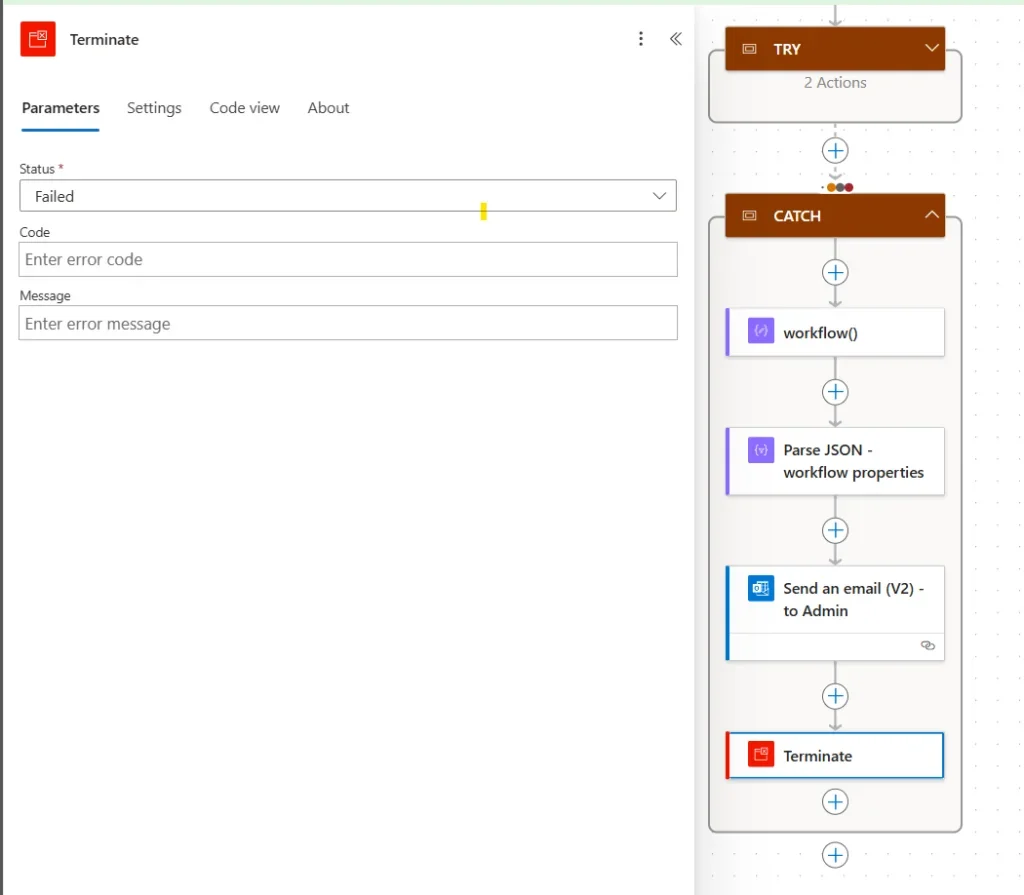
In your Power Automate workflow, create a Scope action named TRY, and add all your workflow's main actions inside it, except for variable declarations. The TRY scope will execute your workflow logic and attempt to run all actions.
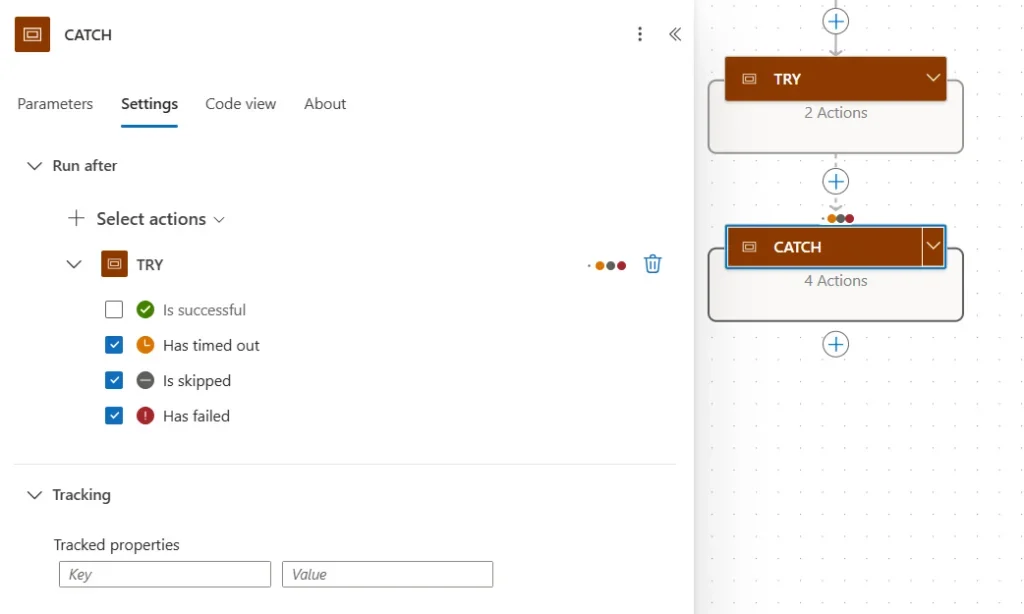
2. Add a CATCH Scope
Add a second Scope action named CATCH, configured to run only if the TRY scope fails, is delayed, or times out.
3. Capture Workflow Properties
Use the workflow() function to retrieve metadata about the current workflow. Add a Compose action with this input:
workflow()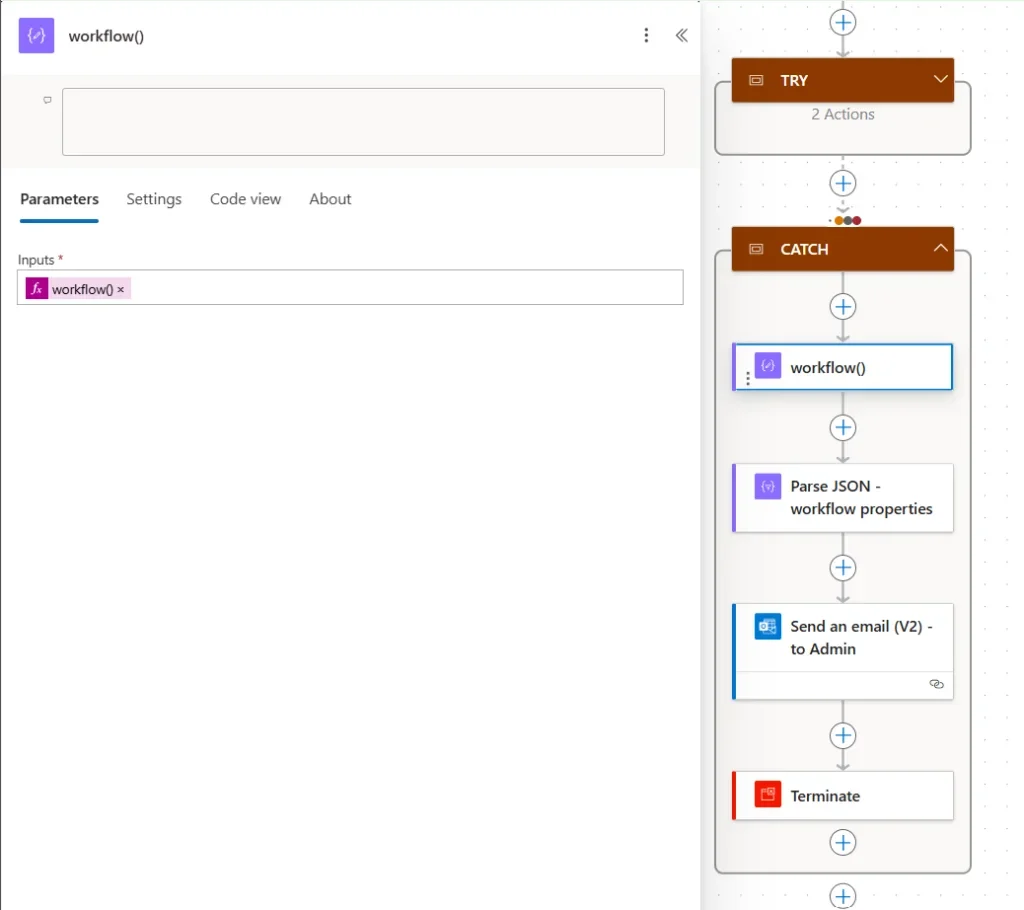
4. Parse Workflow Properties
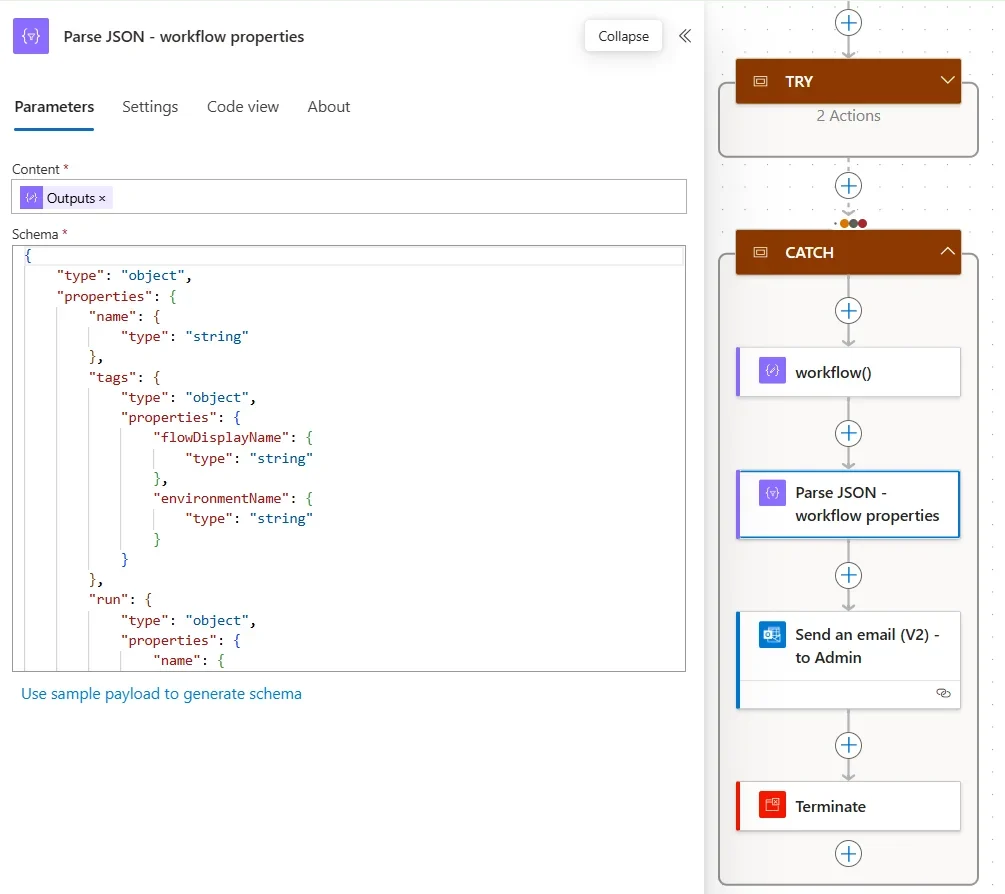
To extract the flow name, environment ID and run ID, add a Parse JSON action. Use the Outputs of the Compose action as content, with this schema:
{
"type": "object",
"properties": {
"name": { "type": "string" },
"tags": {
"type": "object",
"properties": {
"flowDisplayName": { "type": "string" },
"environmentName": { "type": "string" }
}
},
"run": {
"type": "object",
"properties": {
"name": { "type": "string" }
}
}
}
}This action extracts the Environment ID (tags.environmentName), the Flow ID (name) and the Run ID (run.name).
5. Construct the Workflow Run Link
Admins need an easy way to navigate to the failed workflow run. Construct the link using the parsed values:
https://make.powerautomate.com/environments/[--EnvironmentID--]/flows/[--FlowID--]/runs/[--RunID--]Replace each placeholder with the corresponding dynamic output from the Parse JSON step.
6. Send an Email to Admins
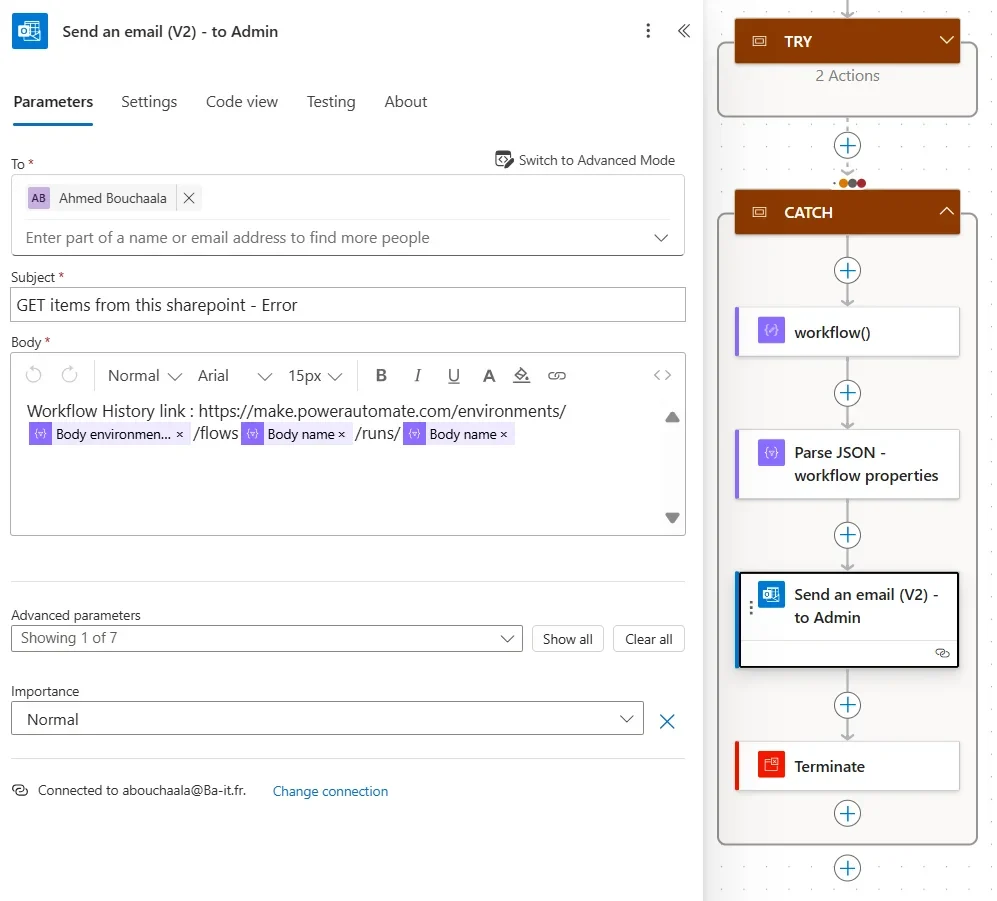
Add a Send an Email (V2) action to notify the admins:
- To : use an environment variable containing admin email addresses
- Subject : include the workflow name and error type, for example "GET items from SharePoint – Error"
- Body : the workflow history link built above
7. Terminate the Workflow
Add a Terminate action as the final step in the CATCH scope, with a Failed status and any relevant error code or message for tracking.
Benefits of the TRY-CATCH Pattern
- Immediate Notification : admins are notified with all the context they need
- Clear Error Logging : error details and the failed run link are logged for easy access
- Improved Collaboration : developers and admins can work together to resolve issues faster
Conclusion
Implementing a TRY-CATCH pattern in Power Automate workflows is a best practice for managing production issues. With error notifications, detailed context, and direct access to failed runs, you'll save time and improve reliability in your workflows.
Sources
Official references, accessed 23 August 2026.