


Using Regex in Power Apps' Find and Replace Text Functions
Power Apps has native support for regular expressions, but it stays hidden behind a handful of text functions. Once you know where to look, regex becomes one of the fastest ways to validate inputs and reshape strings inside canvas apps.
Résumer cet article avec une IA
Le lien ouvre l'assistant choisi avec une question pré-remplie pointant vers cette page.
Power Apps' Find and Replace tool with Regex is an invaluable feature for making quick, efficient updates to your apps. Below, I'll walk you through two practical scenarios where Regex truly shines, complete with visuals to demonstrate.
1. Migrating Hardcoded Screen Names to Dynamic Variables
When transitioning an app to use dynamic variables for navigation, Regex can help you locate all hardcoded screen names like Screen1, Screen2, and replace them with a variable like varNextScreen.
Regex Pattern to Use:
Navigate\(Screen\d+,What It Does: this pattern matches any Navigate function with hardcoded screen names and makes replacing them with a dynamic variable (Navigate(varNextScreen, …)) quick and easy.
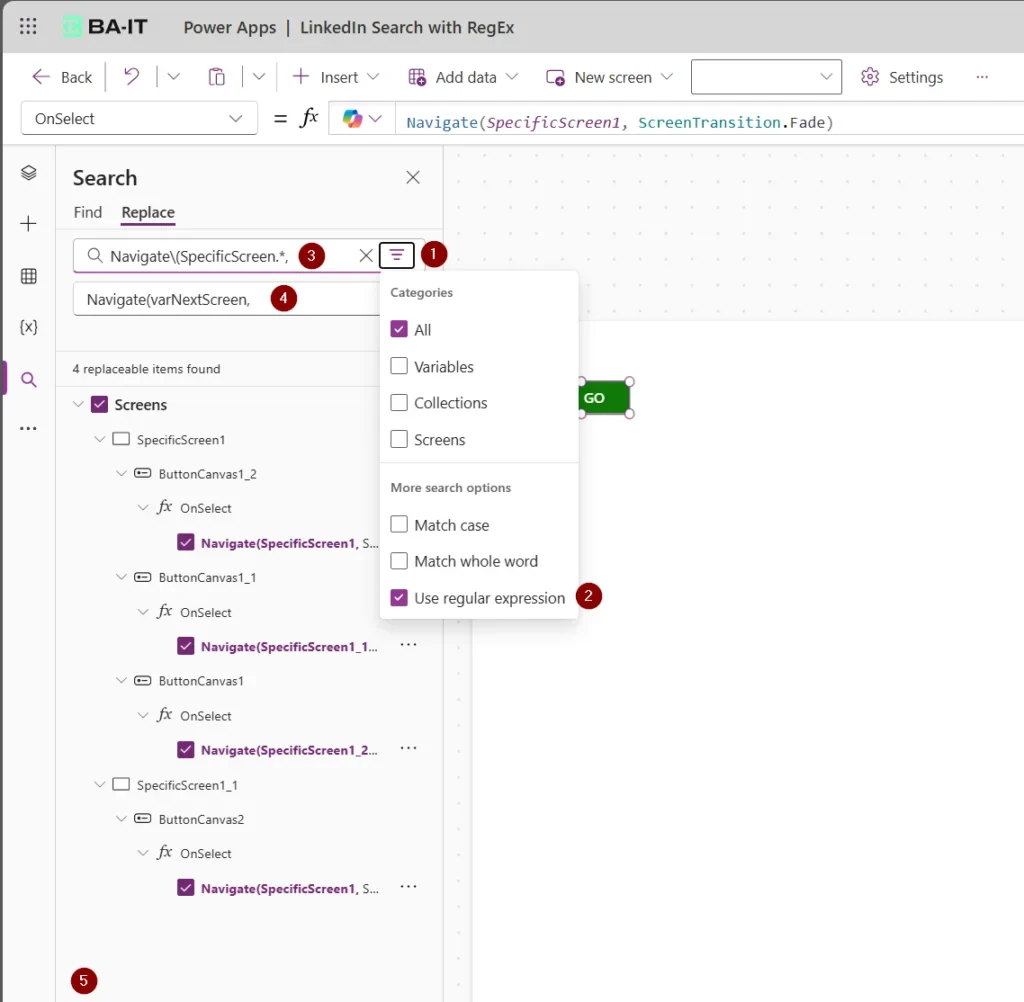
This shows how Regex highlights all navigation calls and allows you to replace them efficiently in bulk.
2. Cleaning Up Unused Variables
Unused variables, such as tempVar, legacyVar, or oldCounter, can clutter your app and impact performance. Regex helps identify these variables quickly for cleanup.
Regex Pattern to Use:
Set\((temp\w*|legacy\w*|old\w*),What It Does: this pattern finds all instances of unused variables so you can delete or update them efficiently.
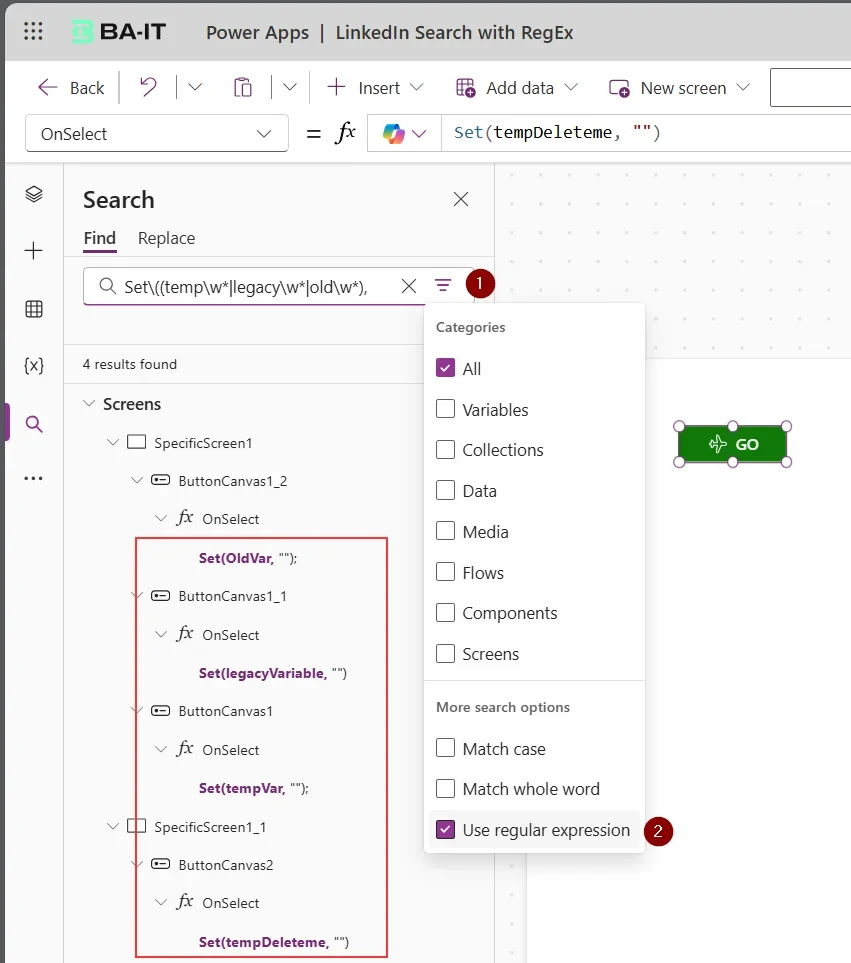
This image shows how Regex identifies multiple unused variables across your app, streamlining the cleanup process.
Conclusion
Power Apps' Regex-enabled Find and Replace tool is a must-use for maintaining and optimizing your apps. Whether you're replacing hardcoded values or cleaning up unused variables, Regex ensures efficiency and consistency.
Sources
Official references, accessed 23 August 2026.